AINOTE Skill Is Now Live
We're thrilled to announce that AINOTE Skill—one of our most requested features—is officially rolling out as part of the August 2026 update for the AINOTE Desktop App (Windows & Mac, Version 3.1.0.6).
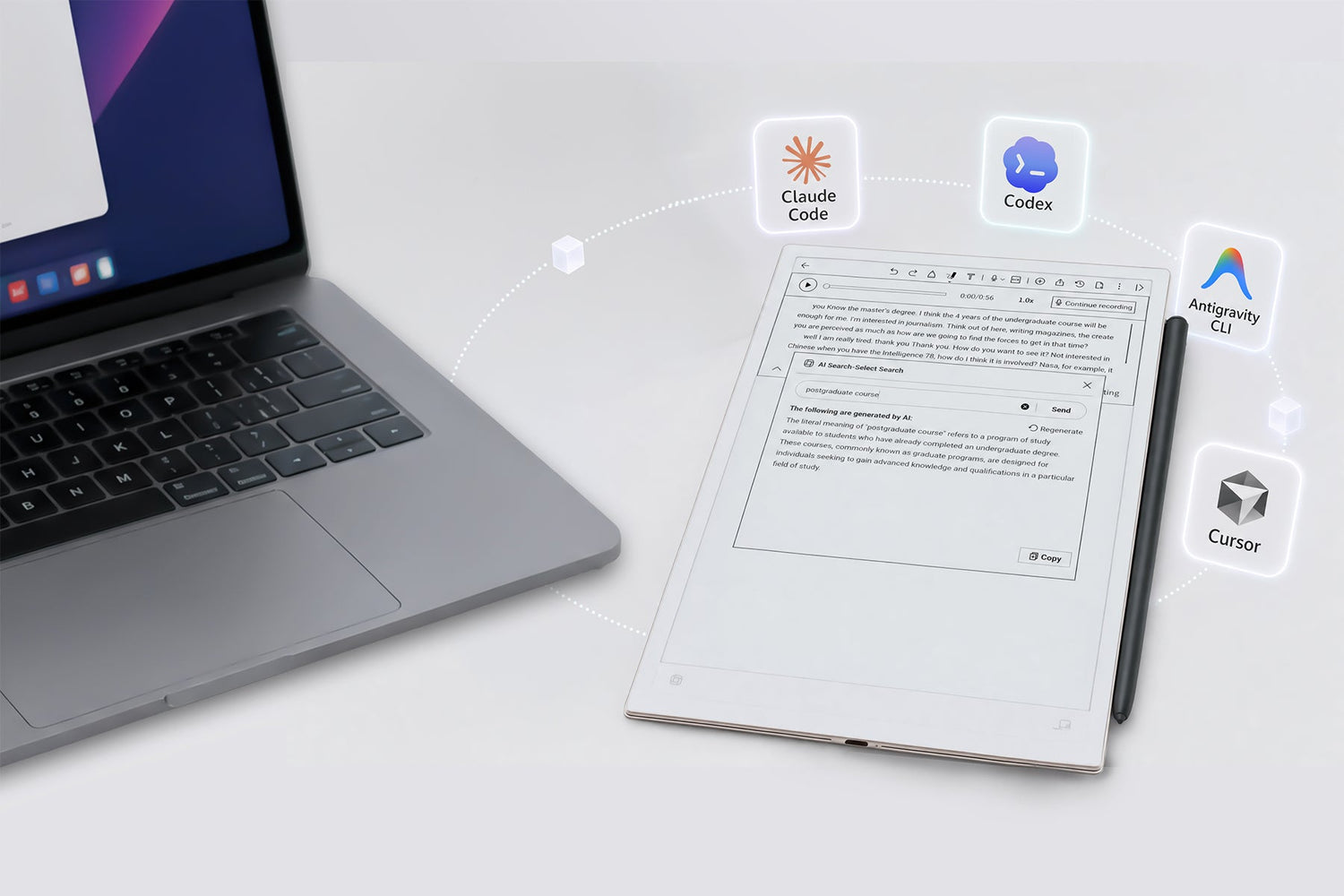
With AINOTE Skill, you can generate a secure authorization link to connect your cloud-backed notes, schedules, tasks, and focus star directly into your favorite AI Agents—including Claude Code and Codex—as a dynamic context stream. Your AI Agent can now truly "understand" your knowledge base. Through simple natural language prompts, it can analyze across multiple notes, check for schedule conflicts, and even create new tasks or folders for you.
📌 Full Update Details: AINOTE Skill is part of the broader August 2026 update. View the complete feature roundup →
Why AINOTE Skill Changes Everything
Previously, bringing your AINOTE knowledge and schedules into AI workflows was clunky:
- ❌ Manual Copy-Pasting: You had to manually copy meeting notes or quick thoughts into AI chat boxes one by one
- ❌ Fragmented Context: AI couldn't link your notes, schedule events, and tasks together, keeping interactions strictly transactional
- ❌ All Talk, No Action: AI gave great suggestions, but you still had to manually create schedule events or add tasks yourself
Now with AINOTE Skill, your AI Agent becomes a true personal digital assistant.
What AINOTE Skill Can Do
1️⃣ Cross-Note & Timeline Analysis
Your AI Agent can now work across specific folders, date ranges, or keywords.
The Pain Point: You have dozens of weekly meeting logs for a months-long project, making review a nightmare.
The New Experience: Just ask your Agent: "Review all notes in the 'Project A' folder, and summarize the key decisions, unresolved risks, and owners in chronological order." It will pull the structured text and build a clean summary report for you.
2️⃣ Moving Beyond Answers into Direct Action
Within your authorized safety boundaries, your AI Agent doesn't just read—it helps you create and organize:
- Automated Knowledge Synthesis: After reading multiple notes, tell your Agent: "Create a new note titled 'August Release Plan Summary'"
- Structure Management: Automatically create folders, batch-move, or rename notes and folders
- Seamless Scheduling & Execution: After discussing ideas or project plans, have the Agent directly create schedule events with reminders or add to-do tasks
3️⃣ Linking Notes + Schedule + Focus star
No more viewing notes in isolation—connect your stored knowledge, schedule, and priority items in a 3D context:
- Cross-Reference & Conflict Check:"Check my AINOTE scheduleand tasks for next week, highlight scheduling conflicts, and suggest timelines for unscheduled tasks"
- Deep Topic Tracking:"Find all focus startagged 'Pricing' from last week, read their source notes, and list all related tasks"
How to Get Started
- Update the App: Update your AINOTE Desktop App (Windows or Mac) to v3.1.0.6 or later
- Confirm Cloud Sync: Ensure the notes or schedule items you want to use are synced and backed up to the AINOTE Cloud
- Authorize & Export: Select your desired scope (Notes / Schedule) in the Desktop App and export the AINOTE Skill link
- Agent Setup: Install the exported Skill link into your AI Agent tool (e.g., Claude Code, Codex)
Two Workflows to Try First
Workflow 1: Turn Recurring Meetings into an Auto-Updating Project Knowledge Base
Setup: Create individual notes for each meeting (e.g., 2026-08-07 | Weekly Sync) inside a dedicated folder.
Agent Prompt: "Browse the 'Weekly Sync' folder and read all meeting notes since July. Summarize key decisions, risks, and open items chronologically, then create a new note titled 'Phase Summary'."
Why it works: Keeps raw meeting records clean and independent while allowing instant cross-meeting analysis without manual digging.
Workflow 2: Daily Briefing (Notes + Schedule + Focus star)
Setup: Have the AI pull project notes, relevant focus star from the past 7 days, and your upcoming 7-day schedule/tasks.
Agent Prompt: "Generate a Daily Briefing categorized into: Must-Do Today, Focus This Week, Waiting on Others, and Risks. Show me the draft first. Once I confirm, update task deadlines/reminders and create a new 'Daily Briefing' note."
Frequently Asked Questions
Q1: Can the AI Agent directly edit or overwrite my existing note body text?
A: No. To protect your data and prevent AI Agents from accidentally deleting or altering existing information, the Agent currently operates in read-only mode for existing notes. It can read note bodies and create new notes or folders, but it cannot rewrite, edit, or overwrite existing content, handwriting, images, attachments, or layouts.
Q2: Is my data safe? Does AINOTE send my whole database to AI Agent companies?
A: Yes, your data is safe. AINOTE never "bulk uploads" your database to any third party. The Skill acts strictly as an on-demand API endpoint. Access is strictly limited to what you explicitly authorize in the Desktop App and what is synced to the cloud.
Q3: Why can't the AI Agent see my Google Calendar or Outlook events?
A: Version 3.1.0.6 currently supports calendar events created directly within AINOTE devices or the AINOTE App. Support for third-party synced calendars (Google Calendar, Outlook, etc.) will arrive in the next release.
Q4: Do I need the newest AINOTE hardware model to use this?
A: No! This is a software feature update for the Desktop App and is not restricted by hardware models—both AINOTE 2 and AINOTE Air 2 users can use it.
Q5: I asked the AI Agent to add a new event/task—why isn't it appearing immediately on my device?
A: When the AI Agent performs a write action, it triggers the AINOTE sync process. However, sync completion times depend on network conditions and status, so instant sync cannot be 100% guaranteed. Give it a brief moment or manual sync if needed.
Q6: Can I ask the AI Agent to star or unstar items for me?
A: Currently, Focus Star supports Read-Only access (querying focus star and reading source notes). Creating or modifying star tags via AI Agent is not supported yet.
Q7: How do I update or download the AINOTE Desktop App?
A:
- Auto-Update: When you open your existing AINOTE Desktop App, an update notification prompt will automatically pop up. Simply click to confirm and update.
- Manual Download: If you don't see the prompt or need a fresh install, you can download the latest Windows or Mac desktop client from our official software download page.
Q8: Can I use AINOTE Skill on the mobile AINOTE App?
A: No. Currently, AINOTE Skill is only supported on the PC desktop client (Windows & Mac AINOTE Desktop App) for authorization and setup.
What This Means for You
With AINOTE Skill, your AINOTE device is no longer just a note-taking tool—it's a knowledge hub that connects seamlessly with the AI ecosystem you already use. Whether you're managing complex projects, juggling multiple courses, or capturing ideas on the go, AINOTE Skill makes your workflow smarter, faster, and more intuitive.
And remember—AINOTE Skill is just one part of the August 2026 update. Check out the full feature roundup for AINOTE 2 →
We Want to Hear From You
Have you received the August update yet? Let us know how AINOTE Skill is working for you!
Have you tried AINOTE Skill yet? What workflows are you building with it? Drop your thoughts, feedback, or questions in our official reddit.